
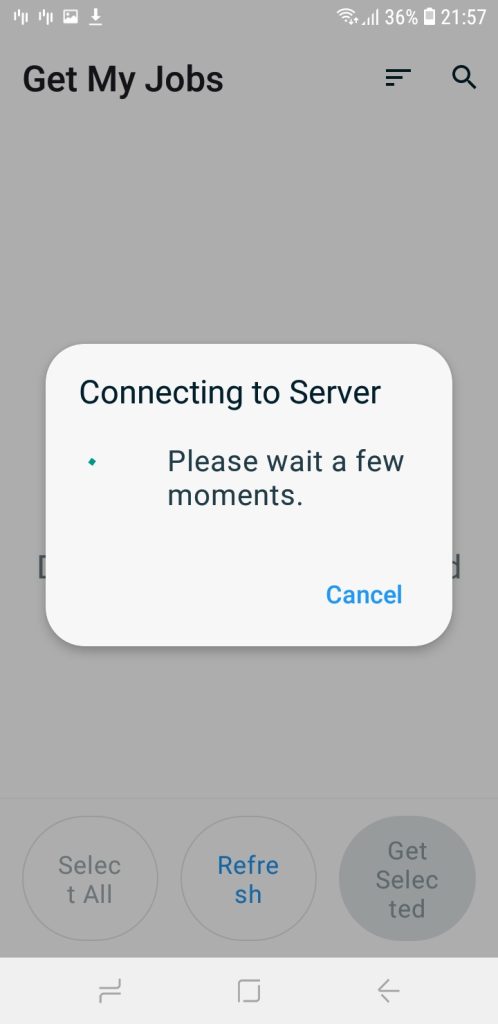
Step 1
Starting the job card by selecting ‘Get My Jobs’ to download the latest form/forms.
Note: If you attempt to start a job card without updating to the latest form, you will receive an error, and your job card number will not be processed.
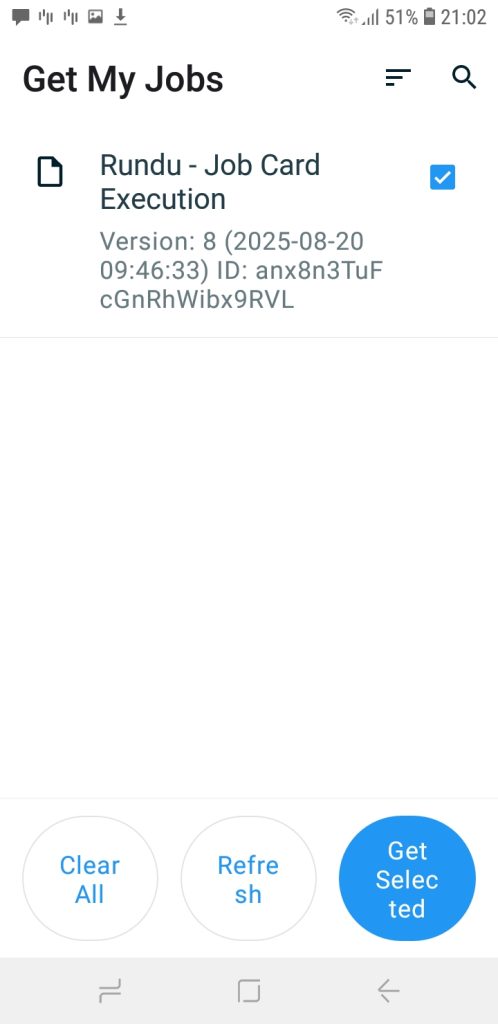
Step 2
Select the available artisan job card to begin, then click ‘Get Selected’ to proceed.
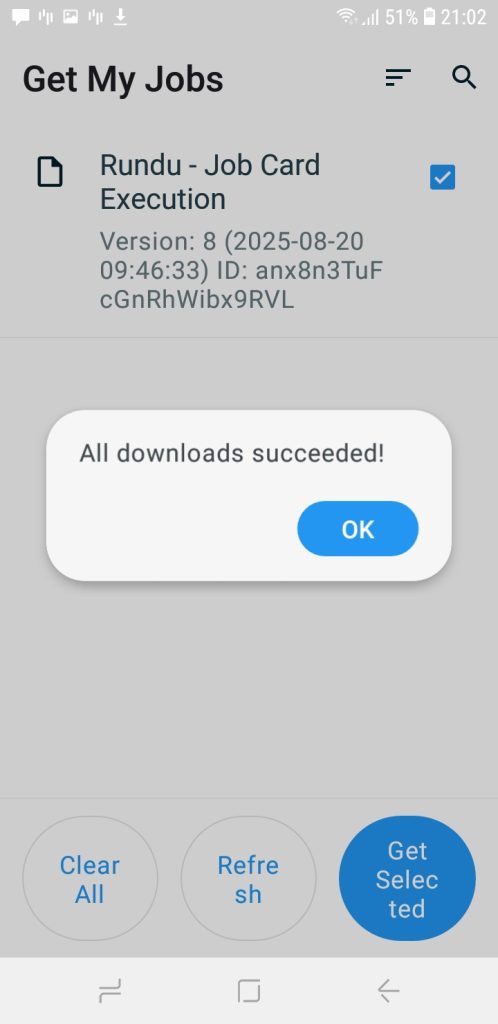
Step 3
A notification window will appear confirming that the selected downloads were successful.
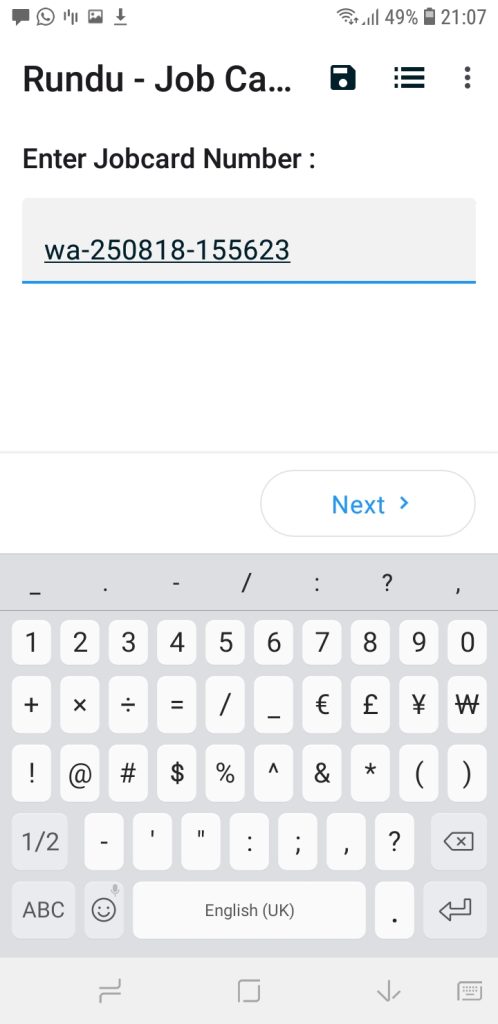
Step 4
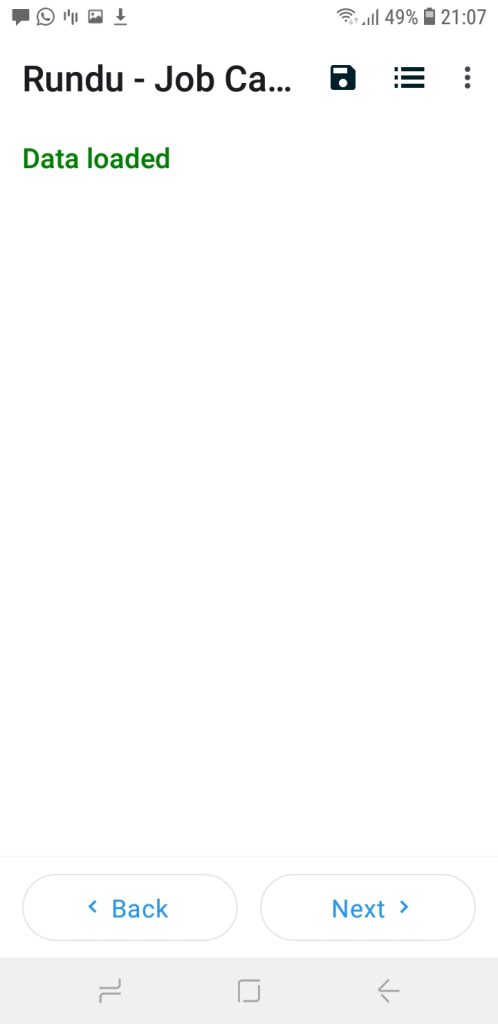
The artisan will receive a notification via SMS or email containing the job card number of the assigned task. Copy or enter this job card number into the highlighted field to prepopulate the form with details already captured by the data clerk or the creator of the job card. Note: This number is case-sensitive; enter it exactly as provided.
Step 5
Begin executing your job card by completing all the required fields until the form is fully filled out. Note: Fields marked with an asterisk (*) are mandatory and the form cannot be submitted unless these fields are completed.
Step 6
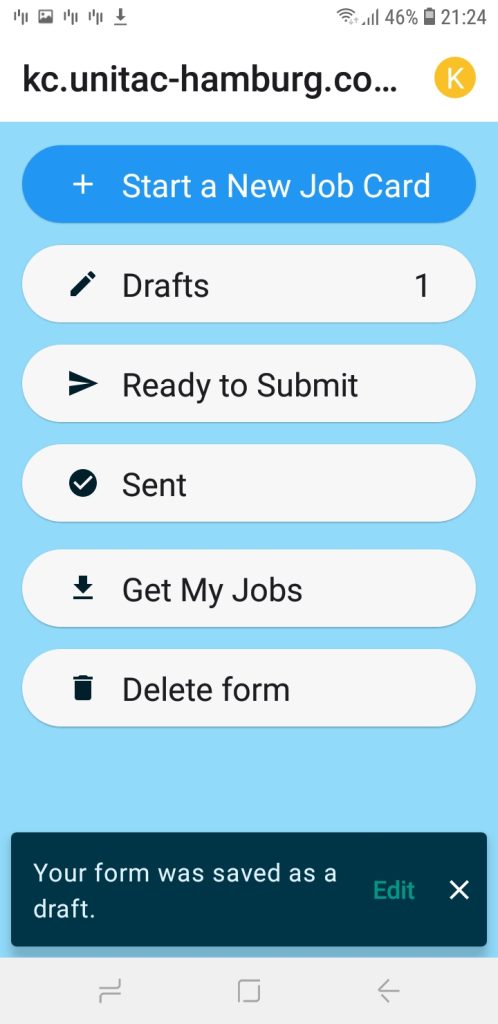
The Save as Draft option allows you to temporarily save the information you’ve entered without submitting the job card. This is useful when you need to pause and complete the form later. If you wish to use this, click on the Save Draft button highlighted in red.
Note: Drafts are not considered final submissions and will not be processed until they are officially submitted. Finalized job cards are not editable.
Step 7
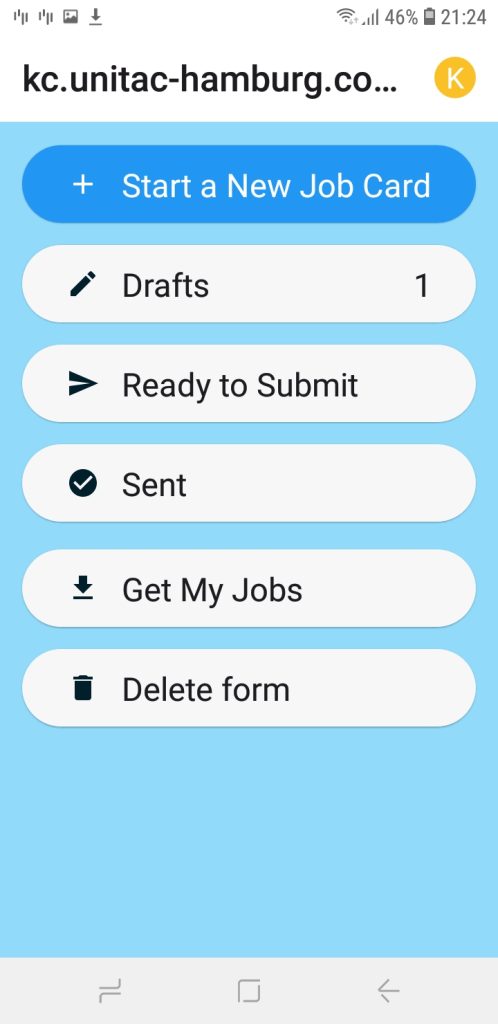
If you save your form as a draft, a notification will appear as highlighted in red. In the ‘Drafts’ section, the number of saved job cards will be displayed, as indicated in the red circle.
Step 8
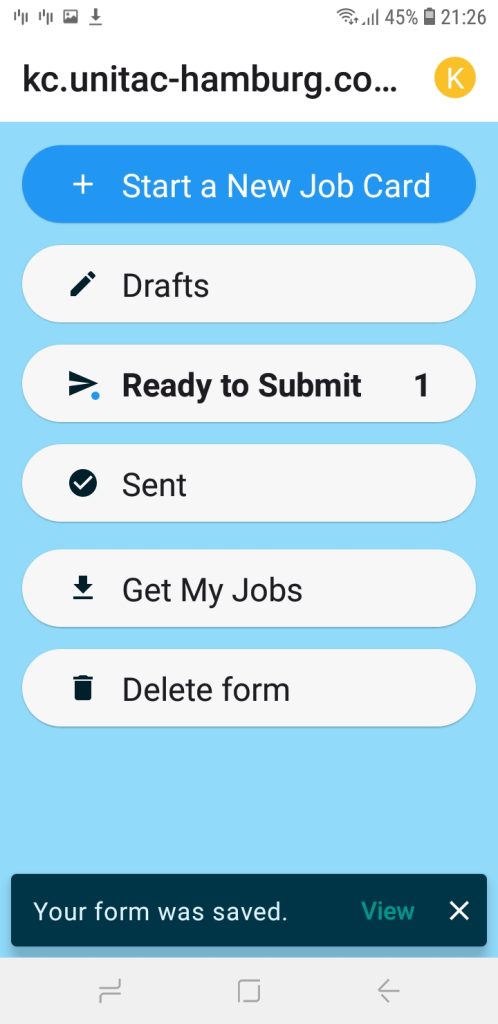
Once you are ready to submit, return to your draft, edit, and finalize the job card before submission. Upon clicking ‘Submit’, a notification will appear that ‘Your form was saved’.


