
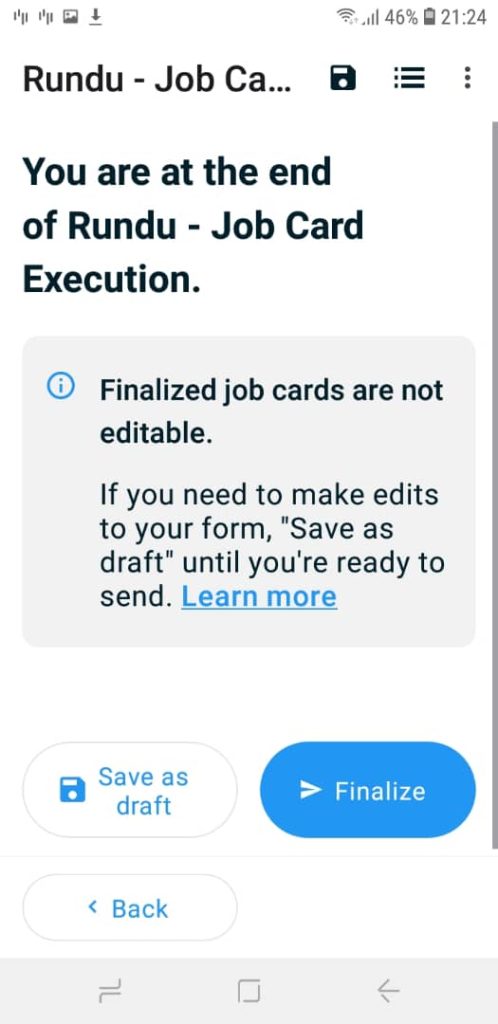
Step 1
The Save as Draft option allows you to temporarily save the information you’ve entered without submitting the job card. This is useful when you need to pause or you do not have internet connectivity. If you wish to use this, click on the Save as Draft button.
Note: Drafts are not considered final submissions and will not be processed until they are officially submitted. Finalized job cards are not editable.
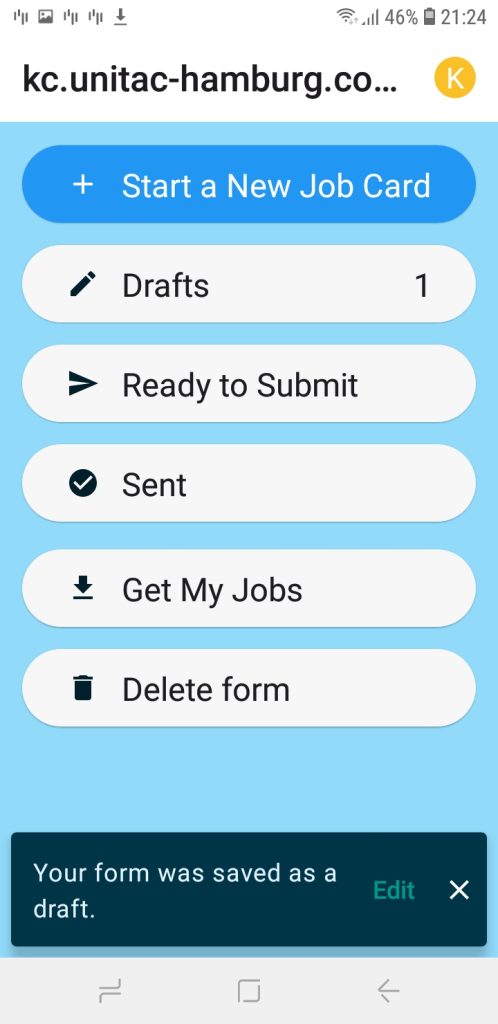
Step 2
If you save your form as a draft, a notification will confirm that ‘Your form was saved as a draft.’ In the Drafts section, the total number of saved job cards will be displayed under drafts.
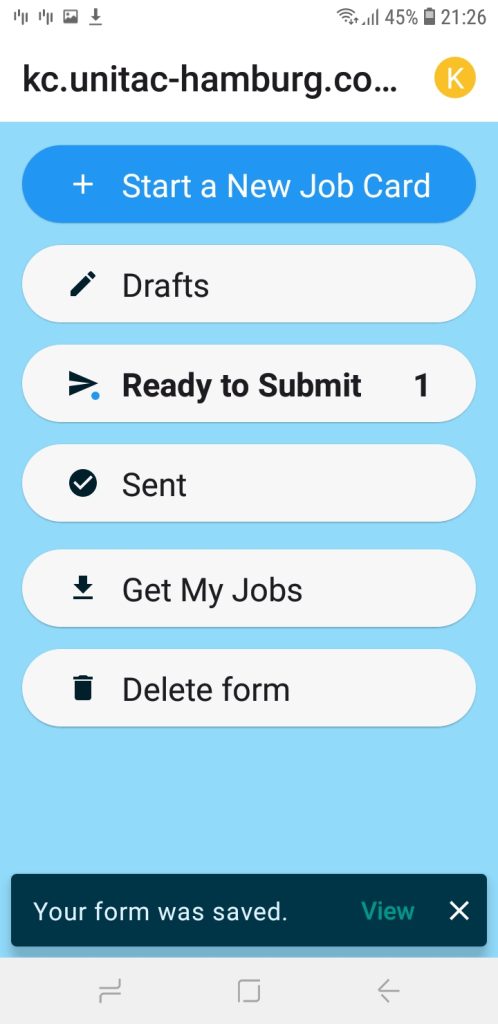
Step 3
When you are ready to submit, or once internet connectivity is available, open your draft, complete any remaining fields, and finalize the job card before submission. After clicking ‘Finalize,’ your submission will be added under ready to submit. Go in ready to submit and submit the submission, a notification will confirm that ‘Your form was saved,’ and the job card will appear under Sent.


